
Quick Start
Quick Start
Section titled “Quick Start”VertiTab is a vertical tab manager designed specifically for browsers, helping you efficiently manage multiple tabs and improve productivity. Below are the quick steps to get started with VertiTab.
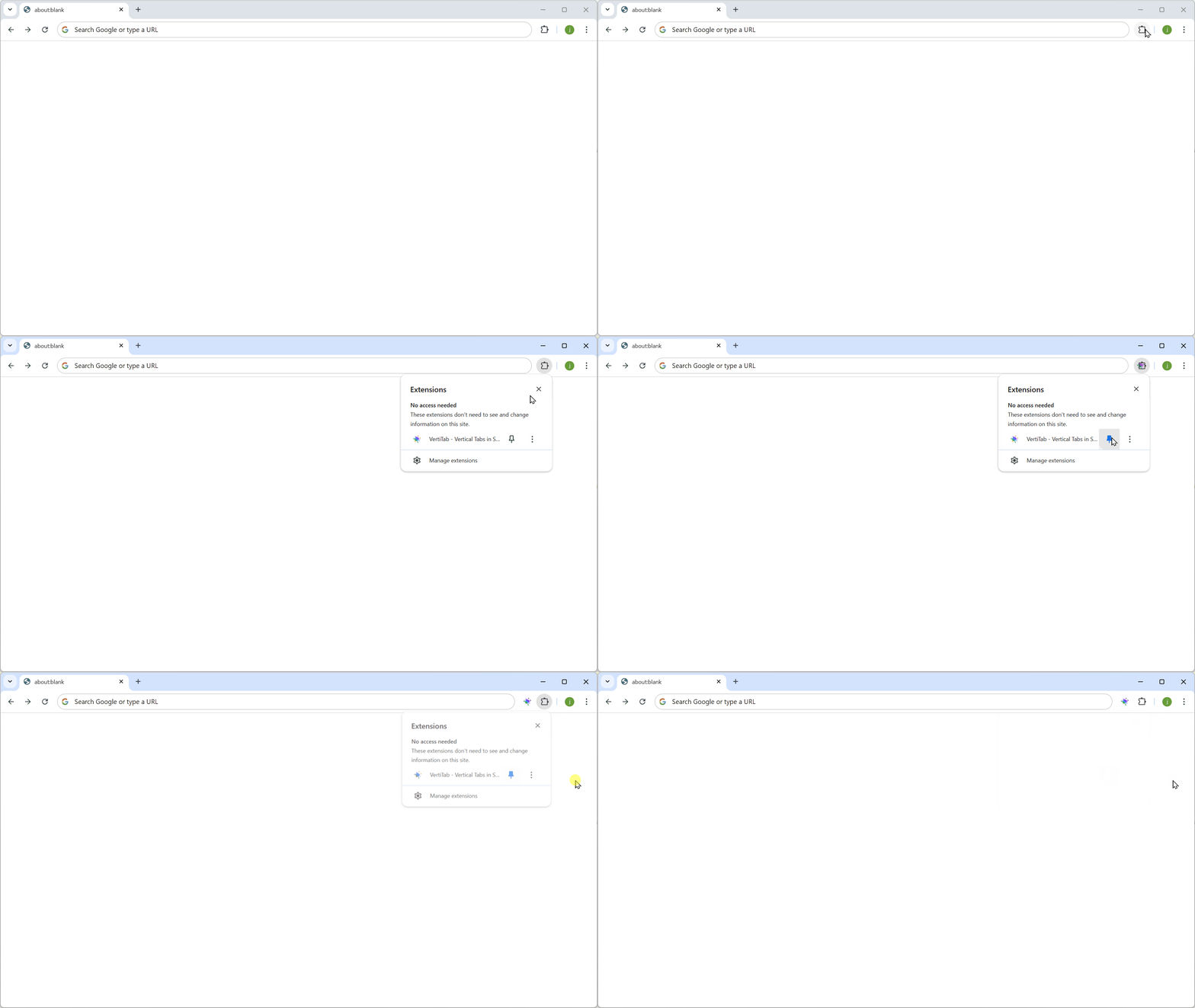
Pin the Extension
Section titled “Pin the Extension”Pin VertiTab to your toolbar for quick access:
- Click on the puzzle icon in the Chrome toolbar.
- Find VertiTab in the list of extensions and click the pin icon next to it to pin it to the toolbar.
Open the Sidebar
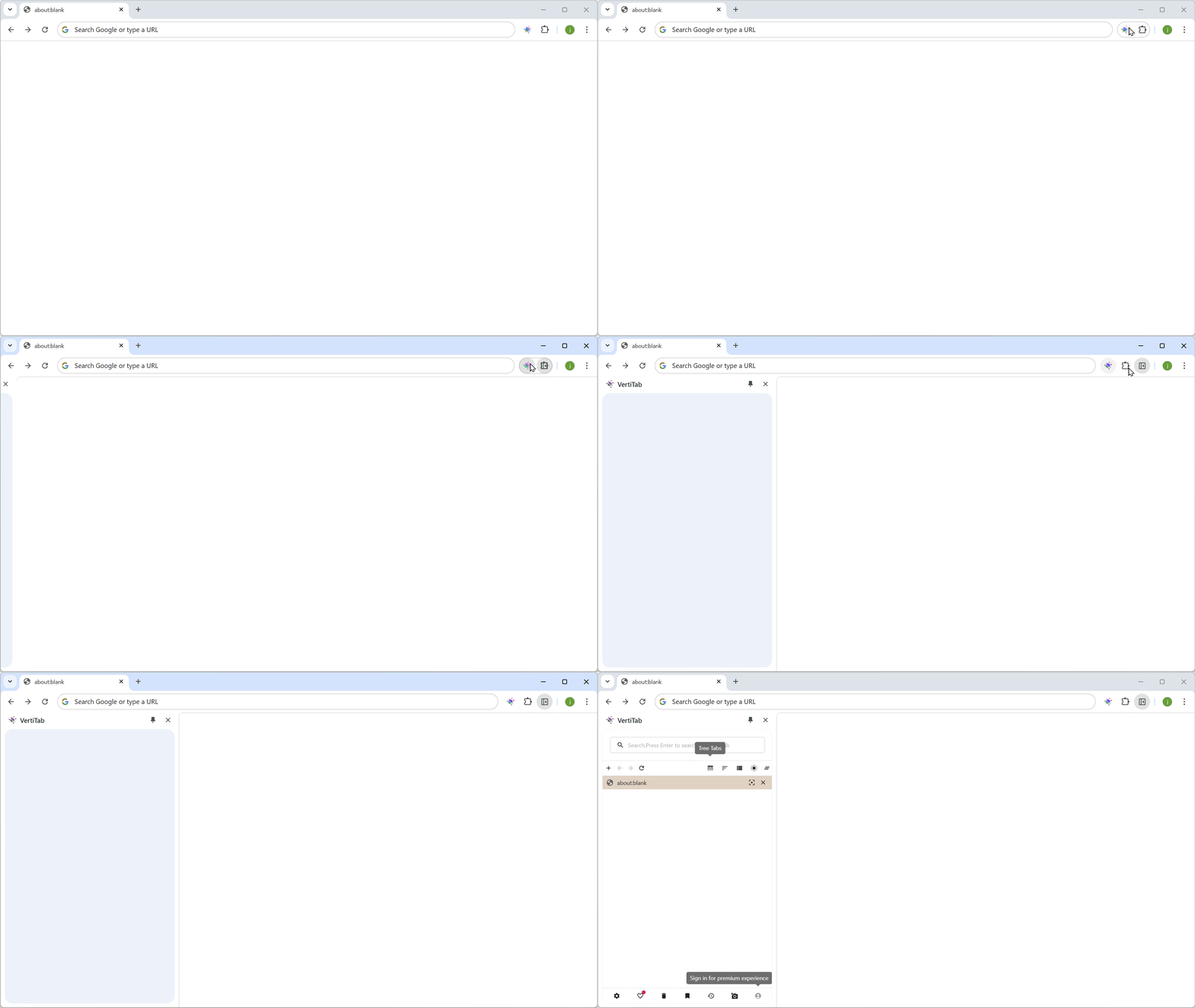
Section titled “Open the Sidebar”Access your vertical tabs through the sidebar:
- Keyboard Shortcuts:
Ctrl + Shift + S: Open/close the sidebarCtrl + Shift + X: Open/close the sidebar (alternate shortcut)
Modify Sidebar Position
Section titled “Modify Sidebar Position”You can move the sidebar to either the left or right side of your browser:
- In Chrome, go to the following settings page: chrome://settings/appearance#:~:text=side%20panel
- Choose the sidebar position (left/right).
Note: Microsoft Edge currently does not support changing the sidebar position.
Additional Features
Section titled “Additional Features”Custom Themes
Section titled “Custom Themes”VertiTab allows you to customize the sidebar’s background color, font style, and layout, creating a personalized browsing experience.
Keyboard Shortcuts
Section titled “Keyboard Shortcuts”VertiTab provides a wide range of customizable keyboard shortcuts. You can visit chrome://extensions/shortcuts to set and adjust your shortcuts for an optimized workflow.
Premium Features Preview
Section titled “Premium Features Preview”As a VertiTab Premium user, you will gain access to features such as tab synchronization, cross-device support, and enhanced picture-in-picture. To learn more, visit Premium Features.